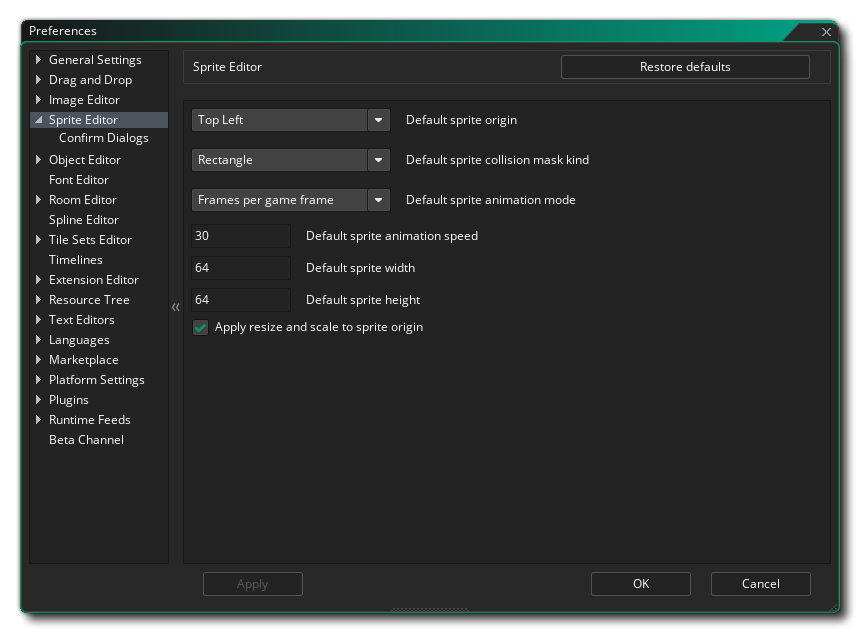
The Sprite Editor Preferences are used to define how the sprite editor looks and functions. The following option exists:
- Default sprite origin: This option permits you to set
the default origin position for any new sprite resources that you
create. The default value is the Top Left.
- Default sprite collision mask kind: This option permits
you to set the default kind of collision mask to use for new
sprites. Choices are rectangle, rotated rectangle, ellipse,
diamond, or precise (per frame). The default is rectangle.
- Default sprite animation mode: This option permits you
to set the default animation mode for sprites in the sprite editor.
You can choose either "Frames per second" or "Frames per game
frame", with the default setting being "Frames per second".
- Default sprite animation speed: This option permits you
to set the default animation speed value for when you create a new
sprite resource. Note that this value is linked to the animation
mode and - for example - 3 frames per second i not the
same as 30 frames per game frame, so be sure to set this value
correctly in reference to the preferred mode. Default value is
30.
- Default sprite width: This option permits you to set the
default width for all new sprites created in the sprite editor.
Default value is 64.
- Default sprite height: This option permits you to set
the default height for all new sprites created in the sprite
editor. Default value is 64.
- Apply resize and scale to sprite origin: When checked
this option will change the origin of the sprite when the sprite is
resized or scaled, with the new origin being moved/scaled to match
the new values for the sprite. Note that this is only
applicable for custom sprite origins that are not locked in the
sprite editor. If the origin is locked or the sprite uses one of
the default positions - eg: "Center" or "Top Left", etc... - then
this option will be grayed out and unavailable for changing.
Default is enabled.
The following sub-category also exists for the Sprite Editor:
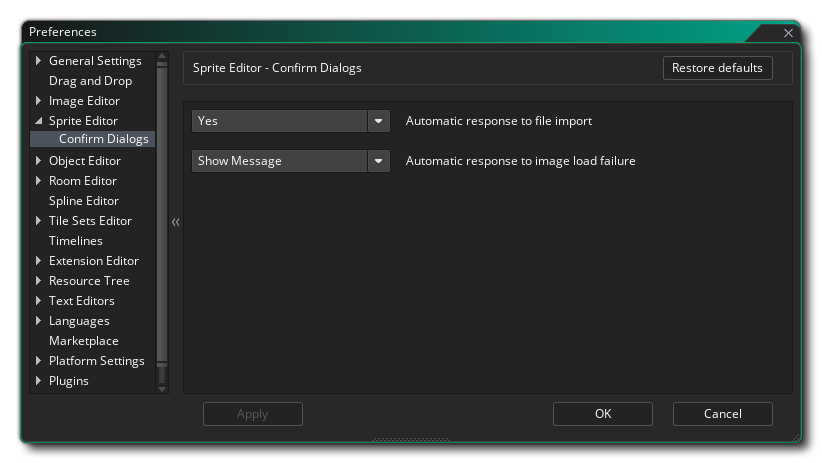
The options available here control the messages that pop up when are required to confirm an action. You can change these setting to show the message always or dismiss it with a specific action (either Yes or No) :
- Automatic response to file import: When you import a new image and one already exists, by default you will be prompted to continue importing and overwrite the existing image or cancel the operation. This option lets you suppress this message and always either cancel the import by selecting "No", or overwrite the current sprite by selecting "Yes". Default value is "Show Message".
- Automatic response to image load failure: When you import a new image and and the import fails, by default you will be shown a warning message informing you that there has been a failure. This option lets you suppress this message by selecting "Okay". Default value is "Show Message".