The GameMaker Studio 2 IDE accepts mouse and keyboard
input, and many operations can be carried out using one or the
other or both. In general you can click the left mouse
button to select anything, use
  /
/ + to select
multiple items, hold to drag items into different docks or
onto the workspaces, and also the
+ to select
multiple items, hold to drag items into different docks or
onto the workspaces, and also the  to open
context specific menus. Note that if you are running GameMaker
Studio 2 on a macOS system and are using a single button mouse,
please use + to get a right mouse click
.
to open
context specific menus. Note that if you are running GameMaker
Studio 2 on a macOS system and are using a single button mouse,
please use + to get a right mouse click
.
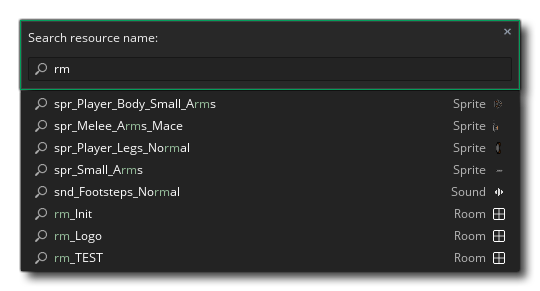
There are also a great number of keyboard shortcuts that can be used to navigate around the different workspace elements and resource editors, and although you can find a complete list here we'll quickly go through some of the most important ones:
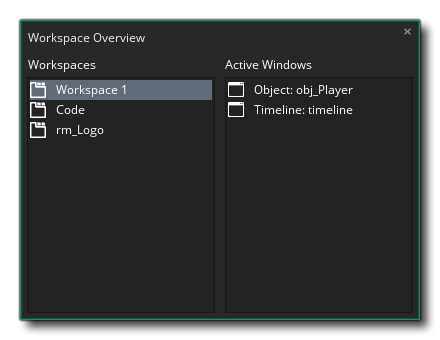
: This will open the Workspace Overview window which can be used to navigate quickly between items that are open in the different workspaces.
: This will open the manual. Note that when using DnD™ or GML code you can also select an action or a function (or keyword or whatever) and then press
to open the manual on the relevant page.
: This can be used to collapse or expand all the different docked windows in the IDE.
Other than those methods of input, there is also limited support for pen devices, and also a special mode for those people working on projects using a laptop. Both of these are explained below:
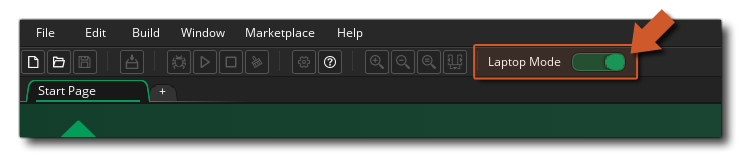
If you are using GameMaker Studio 2 on a laptop, then you will have a further option at the top of the IDE for Laptop Mode:
This will be on by default but can be switched off if you prefer by toggling this button. Laptop mode combines with some tools in the IDE to make it a much better experience when using a touchpad, simplifying the 3 main mouse interactions: Pan, zoom and scroll. It uses two modifier keys to do this: Left
. When laptop mode is on, Left
One final thing we'll mention here is that the IDE for GameMaker Studio 2 also has minimal support for touch screens. On all operating systems you can use the touch screen to click and drag items in the main workspace, and we support 2 simultaneous pointers, where a second tap will perform a right-click. Note that on Windows 8 and above, the GameMaker Studio 2 IDE will support pen devices too.