Once you have downloaded and installed GameMaker Studio 2, the
first time you use it you will be requested to input your licence
details: 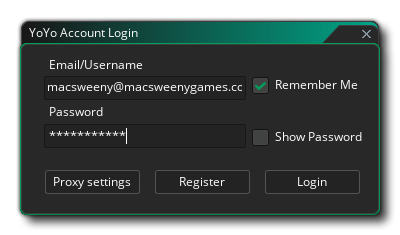
Your licence is tied to a YoYo Account (YYA) and you are required to have made one to be able to use GameMaker Studio 2 . This account holds all your licence details for the YoYo Games products that you own, and is also used for the YoYo Games Marketplace. You can find out further information about the YYA from the following page:
Proxy Support
If you require Proxy Support for your installation of GameMaker
Studio 2, this can be added simply by clicking the Proxy.
This will bring up the following window: 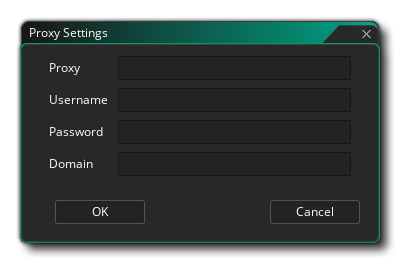
You can now add in your proxy details. Some of the fields shown above are optional and if there is one you don't require then simply leave the field blank. Before continuing however it is worth noting that if you have set a proxy in your Windows Internet Options, and it doesn't require a username/password, then it should just "as is" and you probably will not be required to set up the proxy in GameMaker Studio 2.
If your proxy does require a username and/or password, then you'll need to add them in to the fields shown in the window above. Note that in these cases the username/password/proxy details will always be required, and that the proxy IP should also have the port added, ie: xx.xx.xx.xx:port.
Once you have added the relevant information, click on Okay and log in to GameMaker Studio 2 as normal.